
To access your work factors risk assessment, login to your FlourishDx admin dashboard. Using the menu on the left, navigate to "Surveys", then "Risk Assessment". This will display a list of the risk assessment surveys conducted. Click on a survey to open its dashboard.
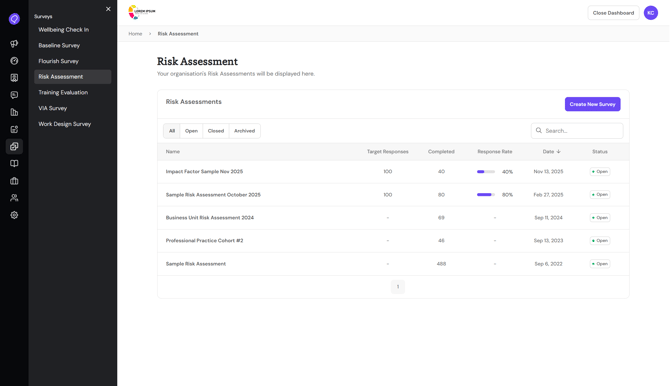
The dashboard will populate once eight responses have been received, and updates live after each new response is submitted.
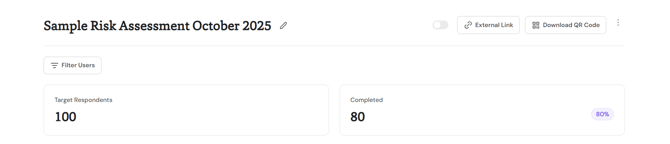
The top section of the dashboard displays an overview of the number and percentage of responses completed. If the risk assessment was deployed to user accounts, this section will also display the number of responses that are in-progress and not started.
In this section you can apply filters to show responses for the demographic categories included in the assessment.
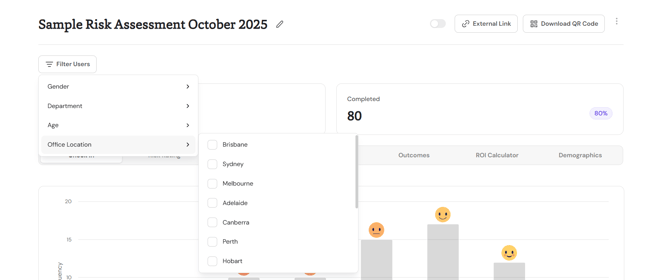
Beneath this section you can choose different tabs on the ribbon menu to display the data collected from the assessment:
- The Check In tab will appear if your risk assessment included a wellbeing check in
- The Risk Rating, Heat Mapping, and Work Factors tabs display the data collected via the work factors and hazards included in your risk assessment. Information on the different scores is available here
- The Outcomes tab displays the data collected via the outcomes measures included in your risk assessment
- The ROI Calculator tab will appear if your risk assessment included the hazards and/or work factors included as default during survey design
- The Demographics tab shows the number of responses received within each demographic category included within the assessment

For instructions on how to navigate and interpret these dashboards, use the links below: