Assigning Teacher Permissions
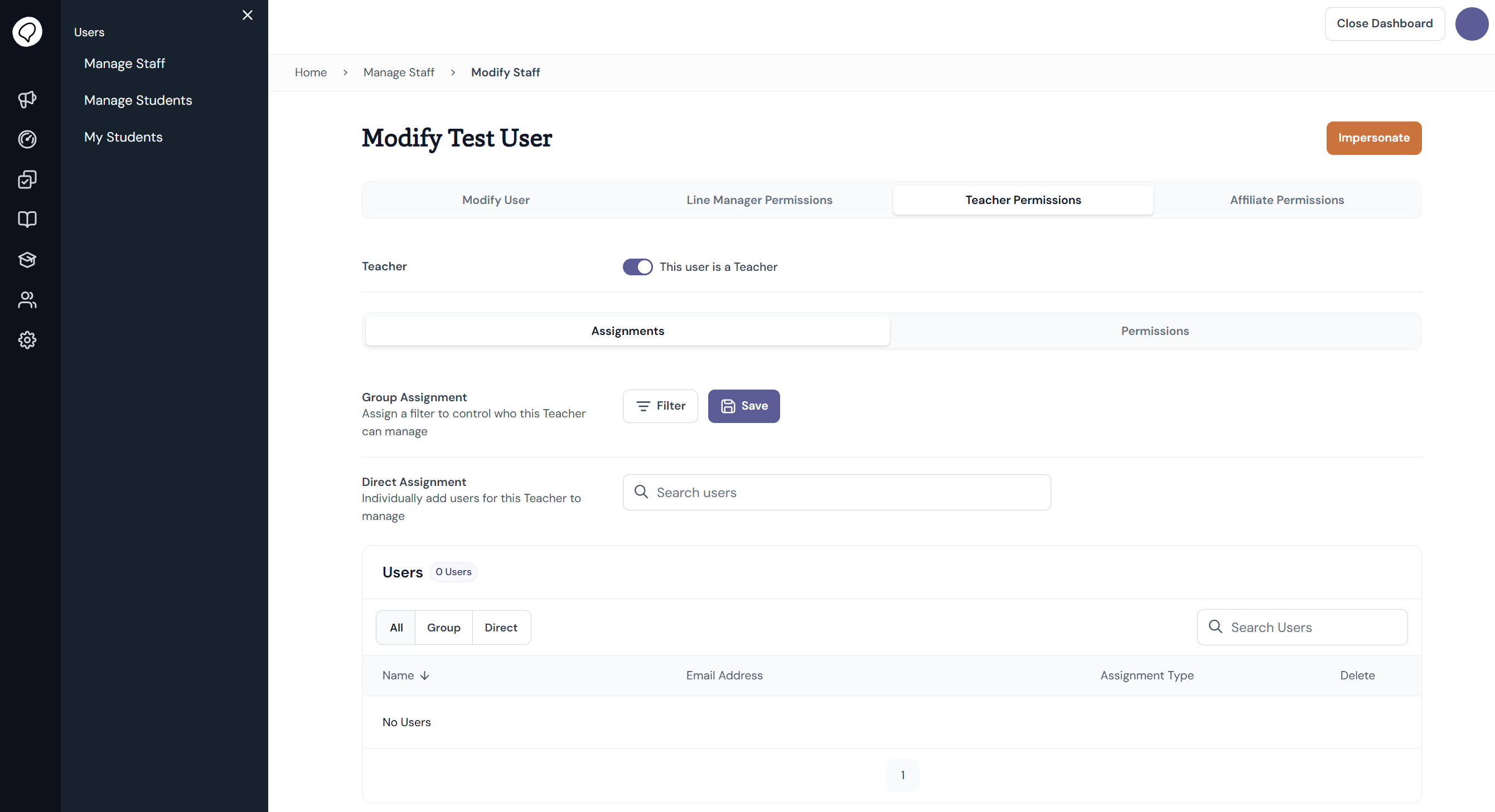
Login to your Admin Dashboard.
Navigate to Users > Manage Staff.
Click on the relevant user from the list.
Using the menu on top of the page, navigate to Teacher Permissions.
Click the toggle on to This user is a Teacher.
Assigning Users
Next, assign users to the work group. Aggregate data from these users will populate the leader's dashboard, per the permissions assigned in the next step. The dashboard will populate once eight responses have been received, so if the leader has fewer than eight people in their team, they will not be able to view aggregate survey results or check-in data. Users can be assigned with direct assignment or group assignment.
Direct Assignment
In direct assignment, use the text field to search for a user.
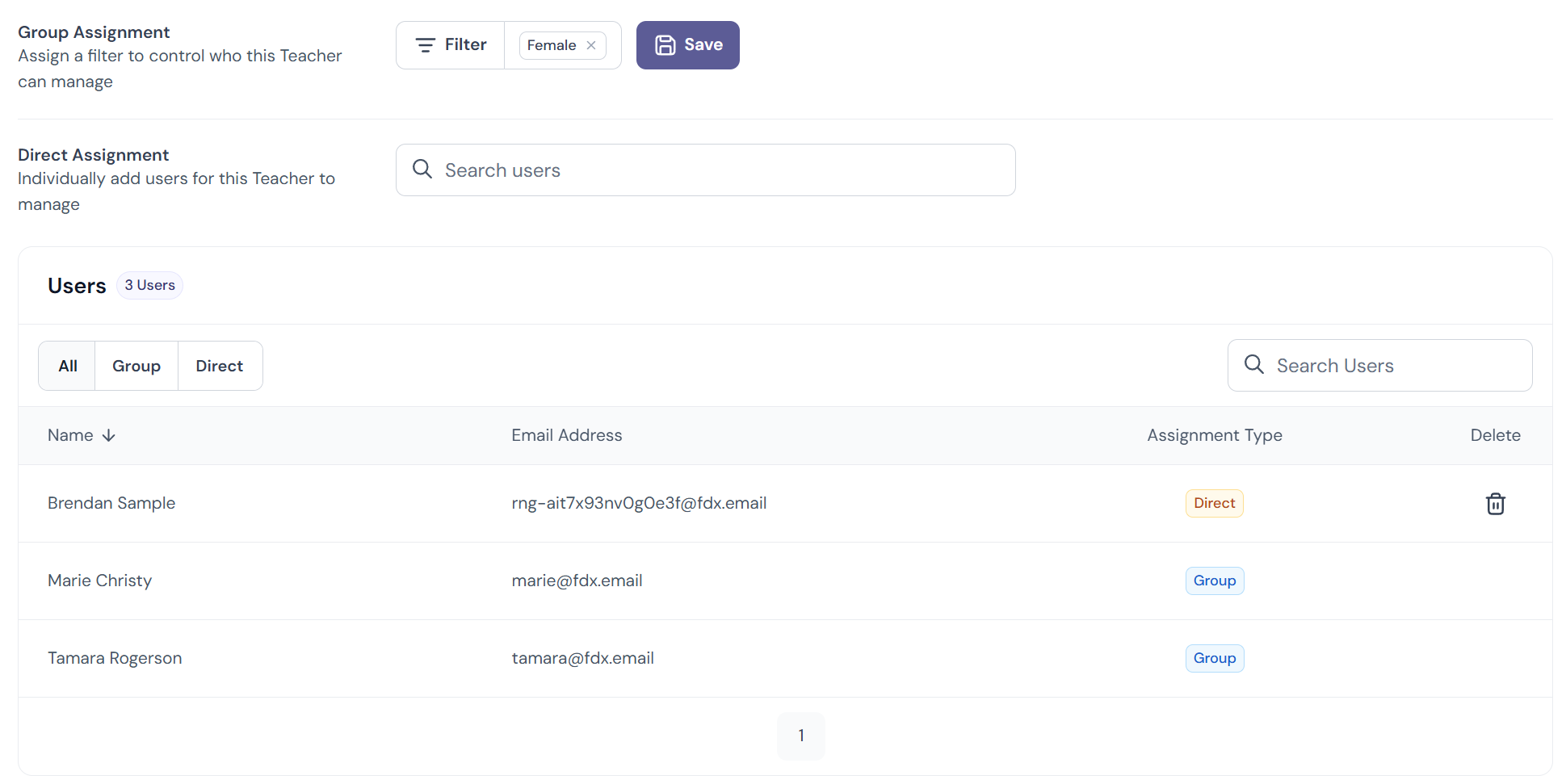
Click the user you wish to add to the list of assigned users.
Group Assignment
In group assignment, use the filter menu to select a set of demographics to assign the leader.
Click Save. Users with the demographic/s will be added to the list of assigned users.
Assigning Permissions
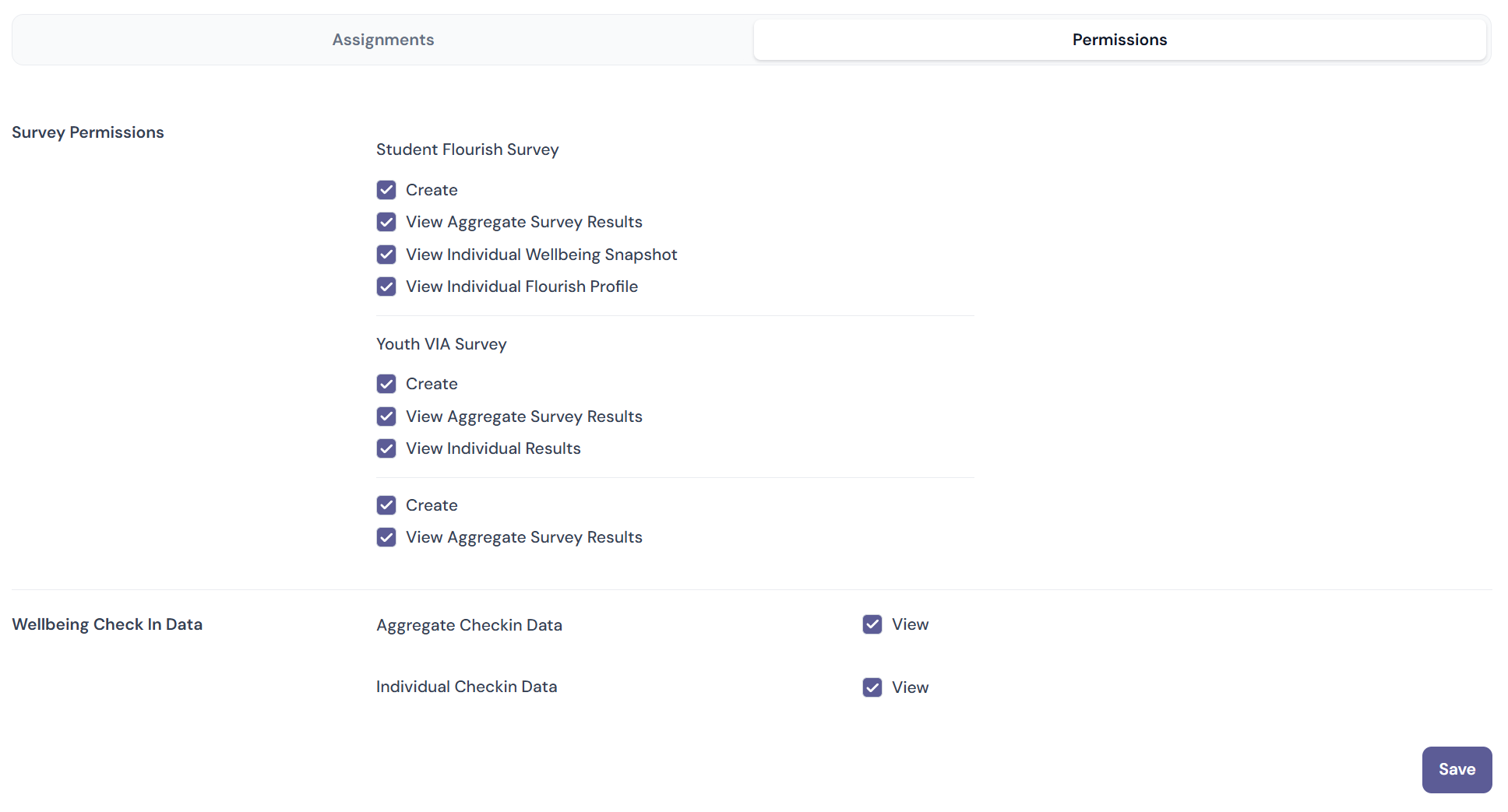
Finally, assign the actions the leader is able to undertake.
Click Permissions tab next to Assignments.
Survey Permissions includes the option to create surveys, and to view survey results.
Permission to view aggregate and individual Wellbeing Check In Data can also be assigned.
Update permissions and click Save.